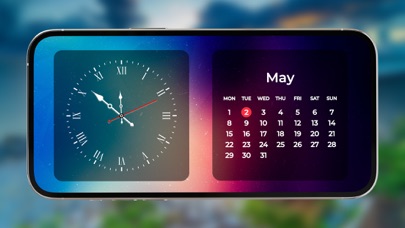
Do you know that it's possible to customize the iPhone clock style in the StandBy mode in iOS 17 or later? Using this App to Set your home screen on standBy Mode!
StandBy Mode in iOS 17! Turn Your iPhone Into a SMART Display!
StandBy mode may be the best new feature in iOS 17! This app also show you how to turn on and customize the widgets on Standby. Changing the widgets on iOS 17 Standby is easy and just like adding widgets to your home screen.
Create unlimited widgets and add to your StandBy Screen.
Follow the steps below to use standBy on iOS 17:
1. Open the settings on your iPhone.
2. Scroll down and select StandBy.
3. Ensure StandBy is enabled on your iPhone.
4. Ensure your phone is charging and the screen is off.
5. Set your phone on it's side so that it is in landscape mode.
6. Your screen will turn on and iOS 17 StandBy will be displayed.
What's new (v1.0.2)
Customize your iPhone StandBy Mode with a smoother and more reliable experience.
We’ve improved performance, fixed bugs, and optimized the app to help you discover wallpapers, widgets, and clock styles more easily. This update makes it faster and simpler to personalize your iPhone lock screen and StandBy display.
Update now for a better StandBy wallpaper and widget experience.